Why now
There was a before and after OpenClaw. The project made one idea obvious: AI should not only answer inside a chat window. It should remember context, execute actions, chain tools, schedule routines and work inside a persistent environment.
That is why AI agents became so compelling: reusable skills, scheduled jobs, automation, memory, connectors, deployments and recurring research. This is no longer a chatbot that reformulates a question. It is a work companion that knows your projects and can take bounded initiatives.
The hard part, until now, was installation. The common pattern was to run the agent on a VPS, a dedicated machine or a small always-on computer. Great for developers and technical profiles. Much less friendly for everyone else.
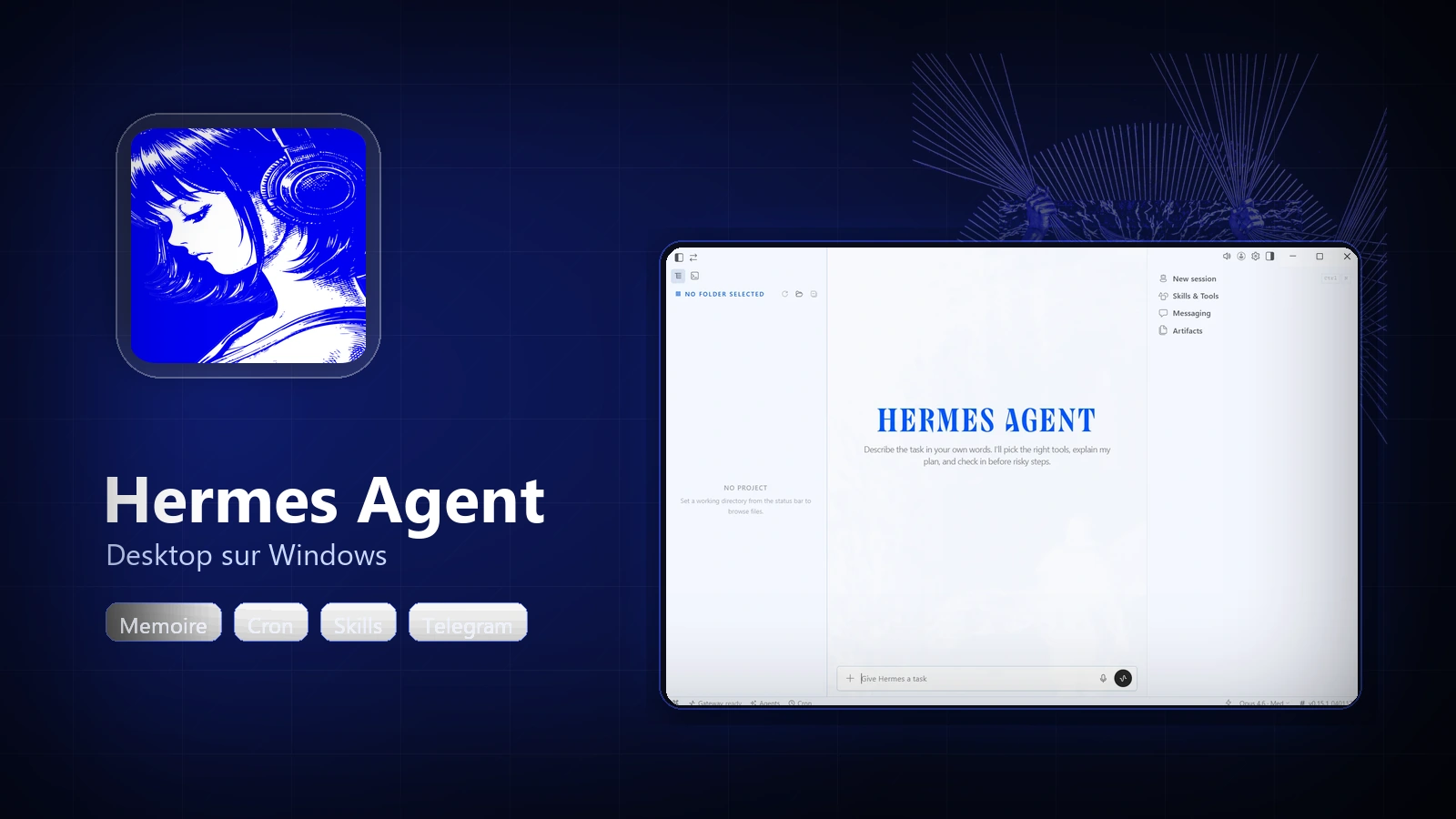
Hermes Desktop is not only a nicer face for Hermes. It makes the local agent much easier to approach: an app, a runtime installed on first launch, and an interface to chat and configure the environment.
Microsoft is pushing in the same direction. At Build 2026, Microsoft introduced Scout, a personal agent built on OpenClaw according to Axios, and Project Solara, a vision for "agent-first" devices where the interface becomes an access point to persistent agents. When Microsoft, Nous Research and the open-source ecosystem converge on the same pattern, this is no longer a niche curiosity.
Windows install: the quick path
On Windows, the value of Hermes Desktop is that it removes the painful path: GitHub clone, Python environment, dependencies, dashboard startup and configuration paths. The official Desktop documentation explains that the packaged app mostly ships the Electron shell, then installs the Hermes runtime into %LOCALAPPDATA%\hermes on first launch.
The basic flow is:
- open the official Hermes Desktop download page or the GitHub project page;
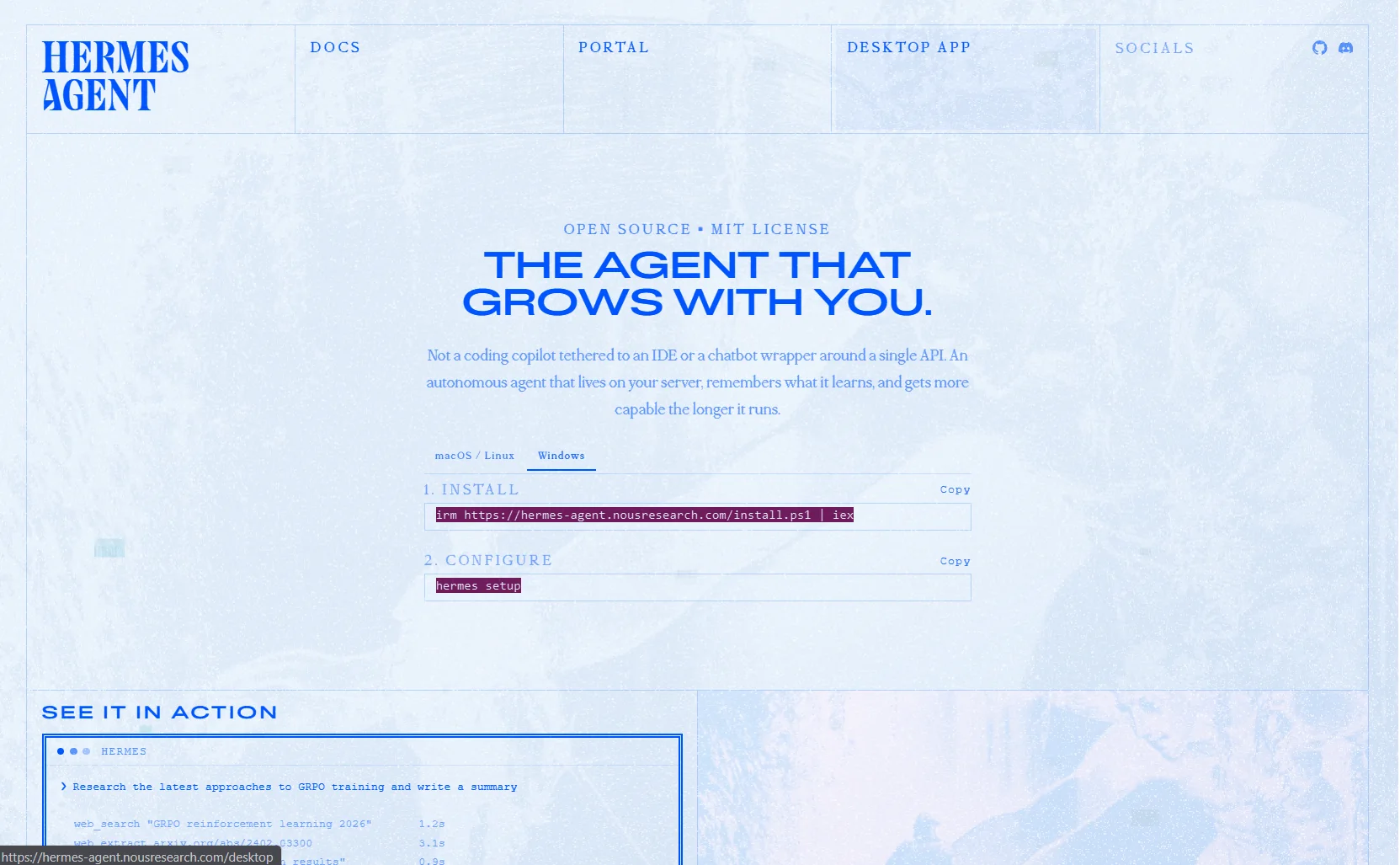
Download. The official page shows the Windows tab and install commands. It is the most direct entry point for getting Hermes Desktop. - download the Windows installer for your machine;
- run the executable and follow the installer;
- open Hermes Desktop;
- configure an AI provider and API key;
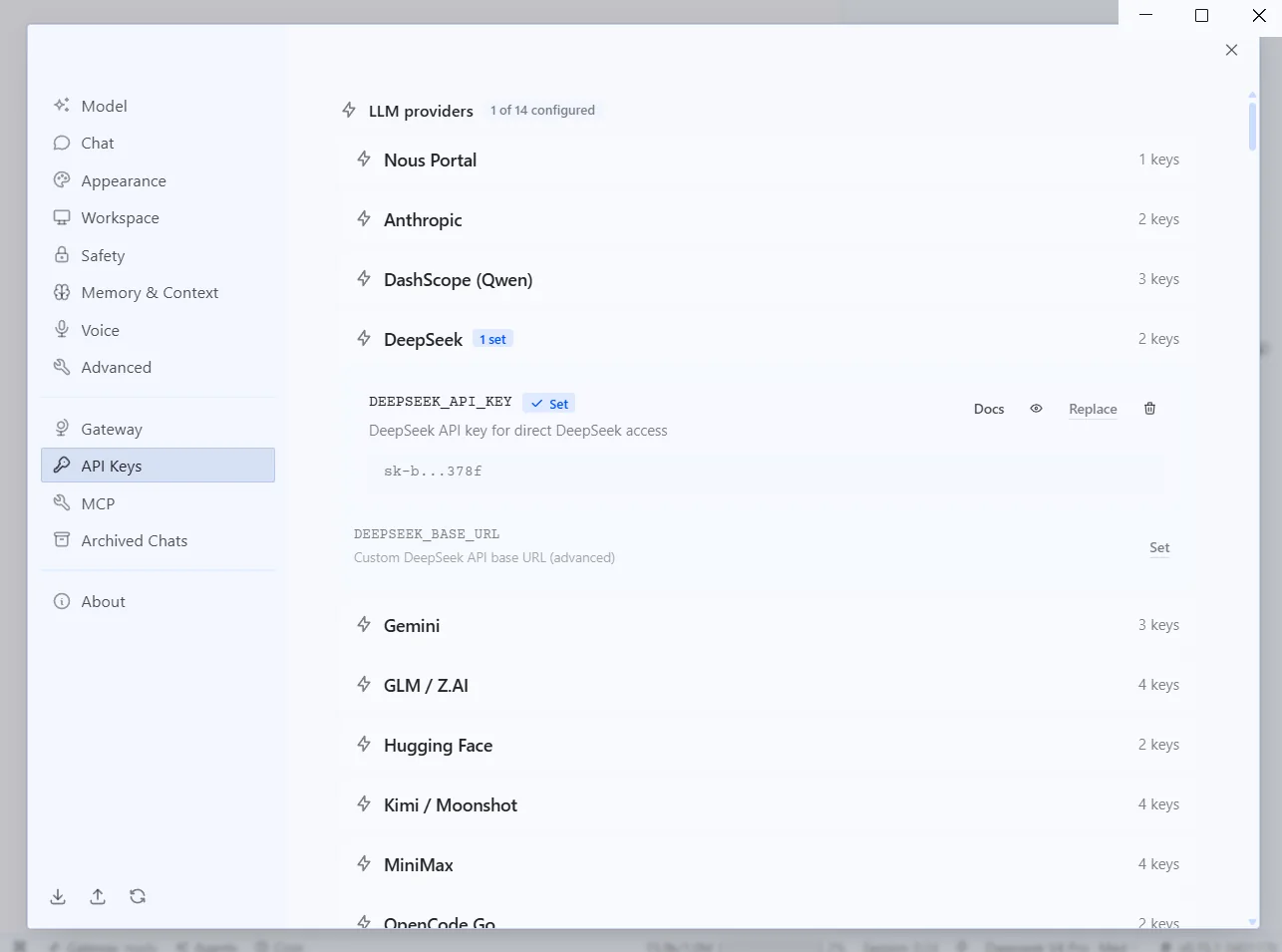
AI provider. Here, DeepSeek is configured with an API key. Hermes Desktop keeps the screen readable: provider list, setup status, and a replace-key action when needed. - start your first conversation.
In my screenshots, I use DeepSeek V4 Pro with an API key. The logic is the same with OpenAI, Nous Portal or another supported provider: pick the provider, paste the key, select the model, then test with a simple prompt.
Configure the model: the two-minute step
The important point: Hermes is not a single model. It is an agent that connects to a model. You can use a cloud provider, an authentication portal, or depending on your setup a local model. In practice, an API key is still the simplest way to start fast.
For a first setup, stay pragmatic. Choose a reliable model, give Hermes one project or one routine, then see how it behaves. It is better to start with a daily tech-watch routine than to automate your entire digital life in an hour.
The minimal test: ask Hermes to summarize a folder, remember a work preference, then prepare a recurring routine. If these three things work, you have already moved beyond simple chat.
I want to configure Hermes as my work assistant.
Remember that I work on AI, data cloud and automation projects.
Propose a simple daily tech-watch routine with a short summary and three useful links.
Do not create anything without asking me for confirmation.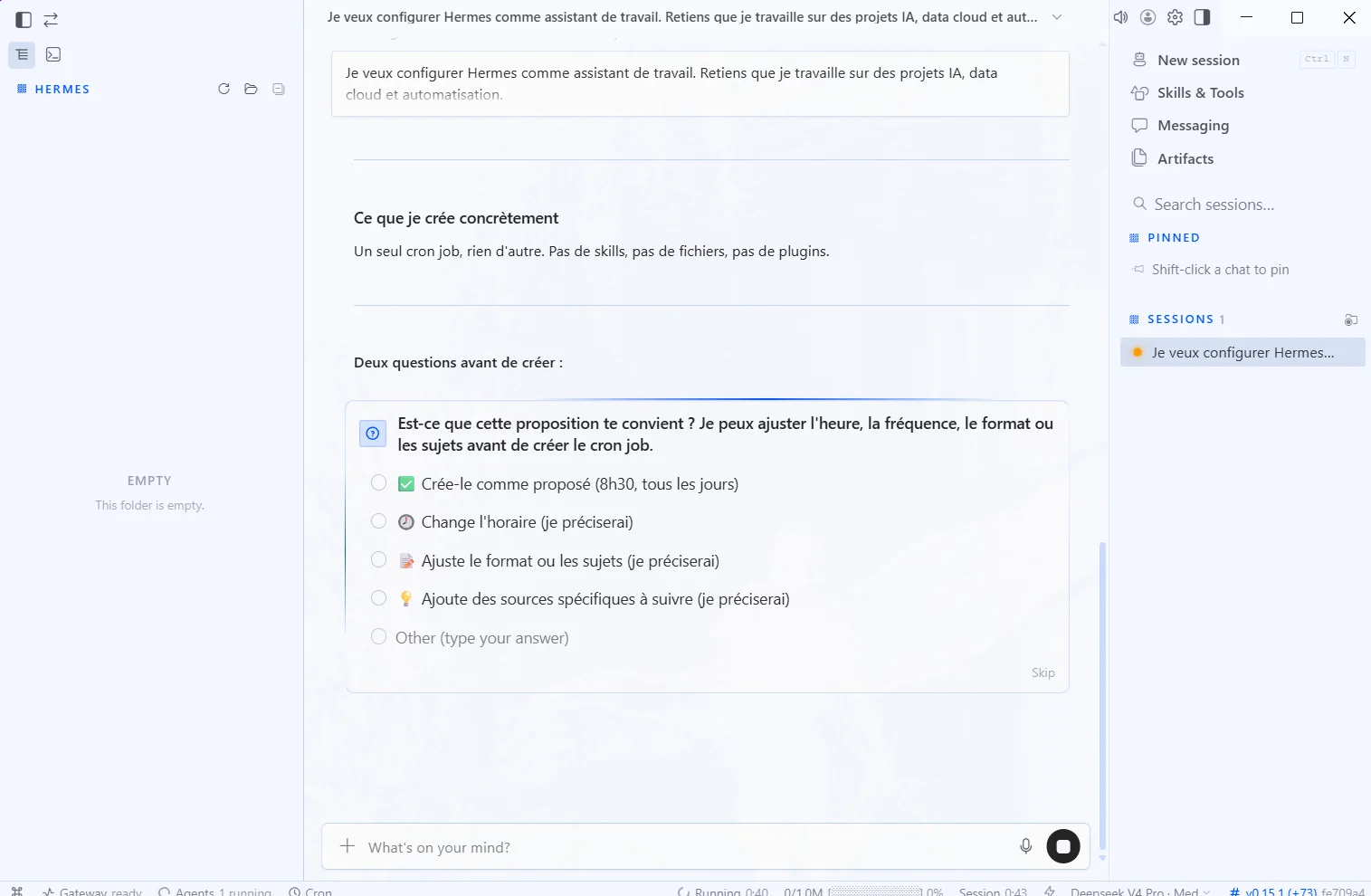
Memory, skills and cron: the actual difference
The Hermes documentation describes bounded persistent memory: MEMORY.md for the agent's notes and USER.md for the user profile. These files are injected at the beginning of sessions, with character limits so memory does not become a junk drawer. That is a healthy design: the agent keeps important facts, consolidates when full, and does not force you to repeat the same preferences.
Skills add a second layer. They are procedural documents the agent can load on demand: PR review, research, deployment, content generation, GitHub workflows. Instead of re-explaining the same method ten times, you give the agent a reusable capability.
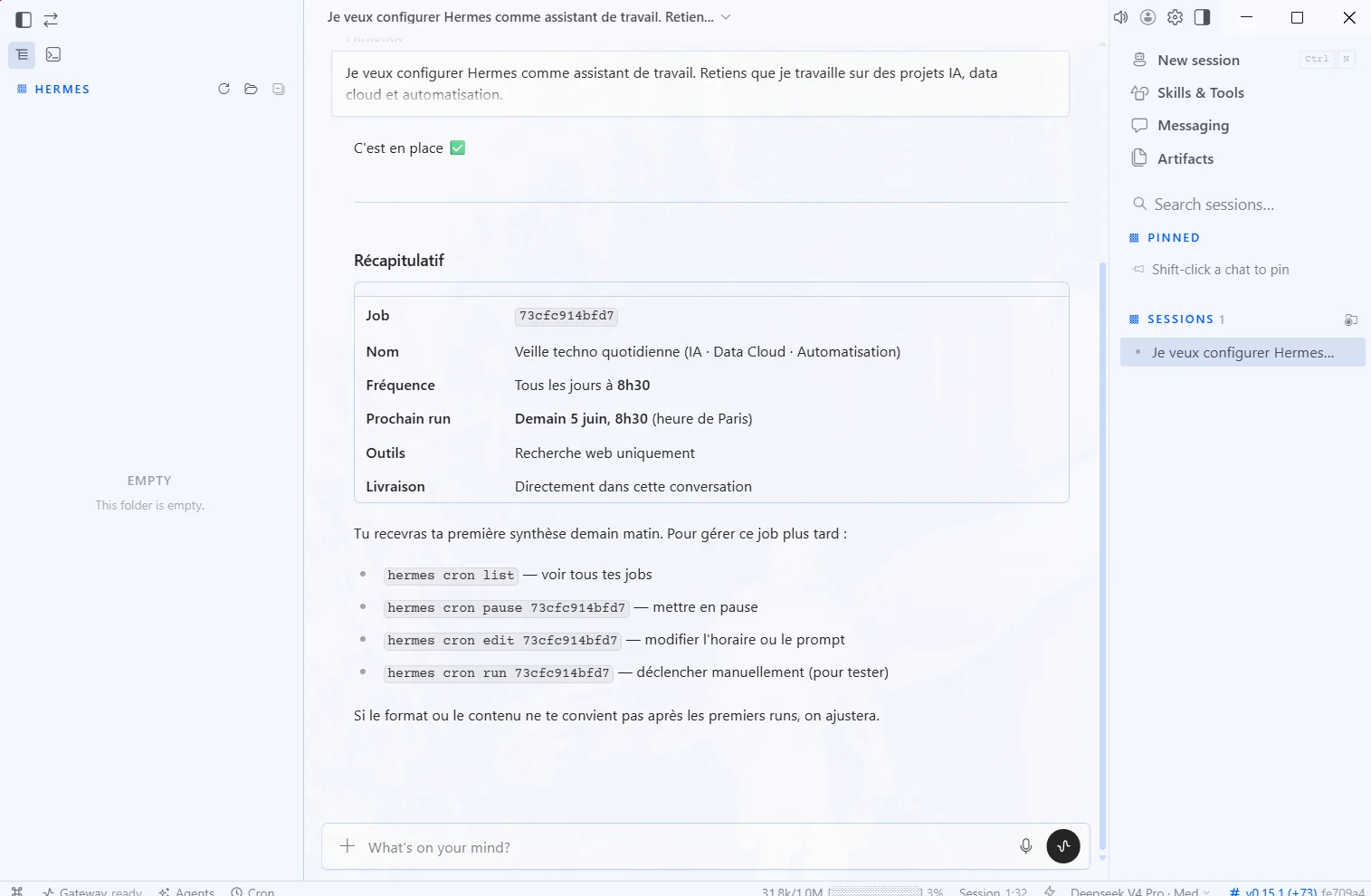
Cron jobs turn the agent into a living system. Hermes can schedule one-shot or recurring tasks in natural language, attach skills to a job, deliver the result to a channel, or run a no-LLM mode for simple watchdogs. This is where you move from a reactive assistant to a personal automation environment.
The biggest shift is not that the agent can talk. It is that it can remember, come back, monitor, retry and improve a process without starting from zero.
— field notes
What I find useful to set up
My favorite use of Hermes Desktop so far is the routine layer. Daily tech watch, market watch, personal task reminders, GitHub repository summaries, then more advanced actions such as building and deploying web projects.
Connected to GitHub, Hermes can help write a project, prepare changes, document a decision, and continue toward deployment. With the right access, you can go further: push to GitHub, deploy to a VPS, verify an endpoint, then handle DNS resolution on Cloudflare. The magic is not in one spectacular prompt. It is in the environment: context, tools, memory, routines and guardrails.
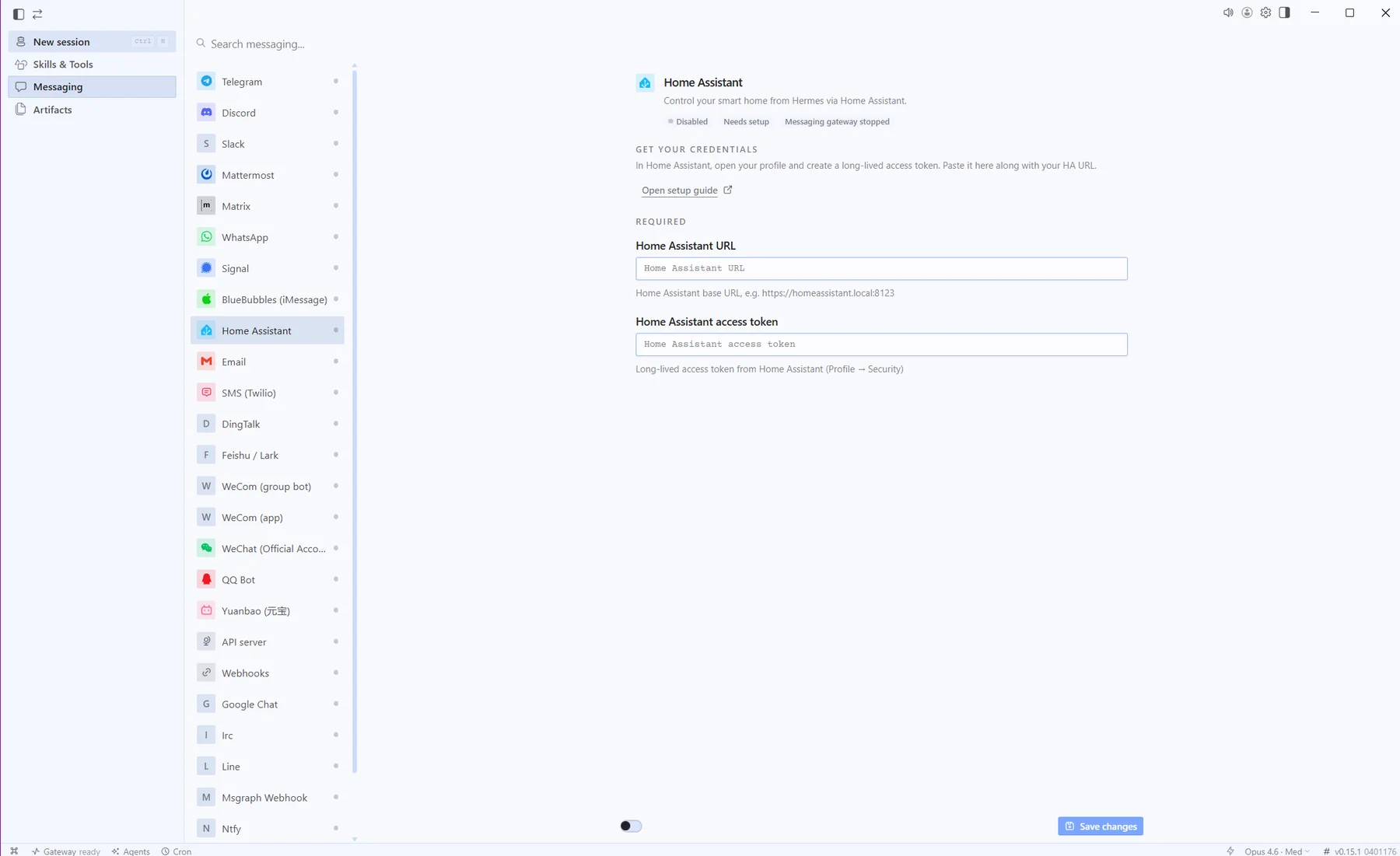
Messaging is becoming interesting too. On my side, I use Telegram to interact with Hermes: it is practical because Telegram supports encrypted conversations, but also because it makes daily input easy. You can send an image, a voice note or an attachment without going back to the desktop interface, then let Hermes process the information, trigger a routine or prepare a response.
- Tech watch. Every morning: releases, technical posts, weak signals and an actionable summary.
- Market watch. Competitors, offers, trends, pricing changes and positioning shifts.
- Personal reminders. Recurring tasks, follow-ups, meeting prep and decision tracking.
- Messaging. Interaction with Hermes from Telegram to quickly send voice notes, screenshots, images or attachments.
- Web development. Project generation, fixes, commit, push, deployment and verification.
- Light ops. Service checks, log review, simple alerts and reporting.
with an API provider
MEMORY.md and USER.md
before going too broad
What to frame carefully
A local agent with access to files, a terminal, AI providers and potentially GitHub or cloud services is not trivial. You need to frame permissions, avoid pasting secrets into chat, limit enabled tools, review sensitive actions and start with reversible workflows.
The right approach: install, test, connect a provider, then give Hermes a clear perimeter. One project folder. One routine. One GitHub repository. One test environment. Only then should you increase the autonomy level.
Even with these precautions, Hermes Desktop changes the game. Personal agents were already powerful. They are now installable by users who do not want to administer a server. That is probably the next major way to work with AI: not chatting with a model, but building an agent environment that learns your habits and automates your processes.
You can see the same direction taking shape across the major players. OpenAI is pushing Codex toward an agentic work app that can orchestrate development, review, deployment and, increasingly, knowledge-work tasks. Anthropic follows a similar path with Claude Cowork, which brings Claude Code's agentic capabilities into Claude Desktop for work beyond coding. Hermes Desktop fits that same shift: AI becomes an active workspace, not just a conversation box.
Sources
- Hermes Agent, Desktop App documentation.
- NousResearch/hermes-agent on GitHub.
- Hermes Agent GitHub releases.
- Hermes Agent, Features Overview.
- Hermes Agent, Persistent Memory.
- Hermes Agent, Scheduled Tasks Cron.
- OpenClaw official site.
- TechRadar, What is OpenClaw?.
- Axios, Microsoft debuts Scout agent.
- Windows Central, Microsoft Project Solara at Build 2026.
- OpenAI, Introducing the Codex app.
- Anthropic Help Center, Get started with Claude Cowork.